
What a batch is
A batch is a quantity of one variant that expires on one date: 24 tubs of yogurt best before 14 March, 12 bottles of vitamin D that expire in June. Shopify counts how many units you have; Datima records which units, by date. The dashboard, the weekly digest, the deductions on every sale, the markdowns and the write-off all start from the batches you record here.
Two fields are required: the expiry date and the quantity. Everything else — lot code, bin, received date, note — is optional and never in the way.
Add a batch by hand
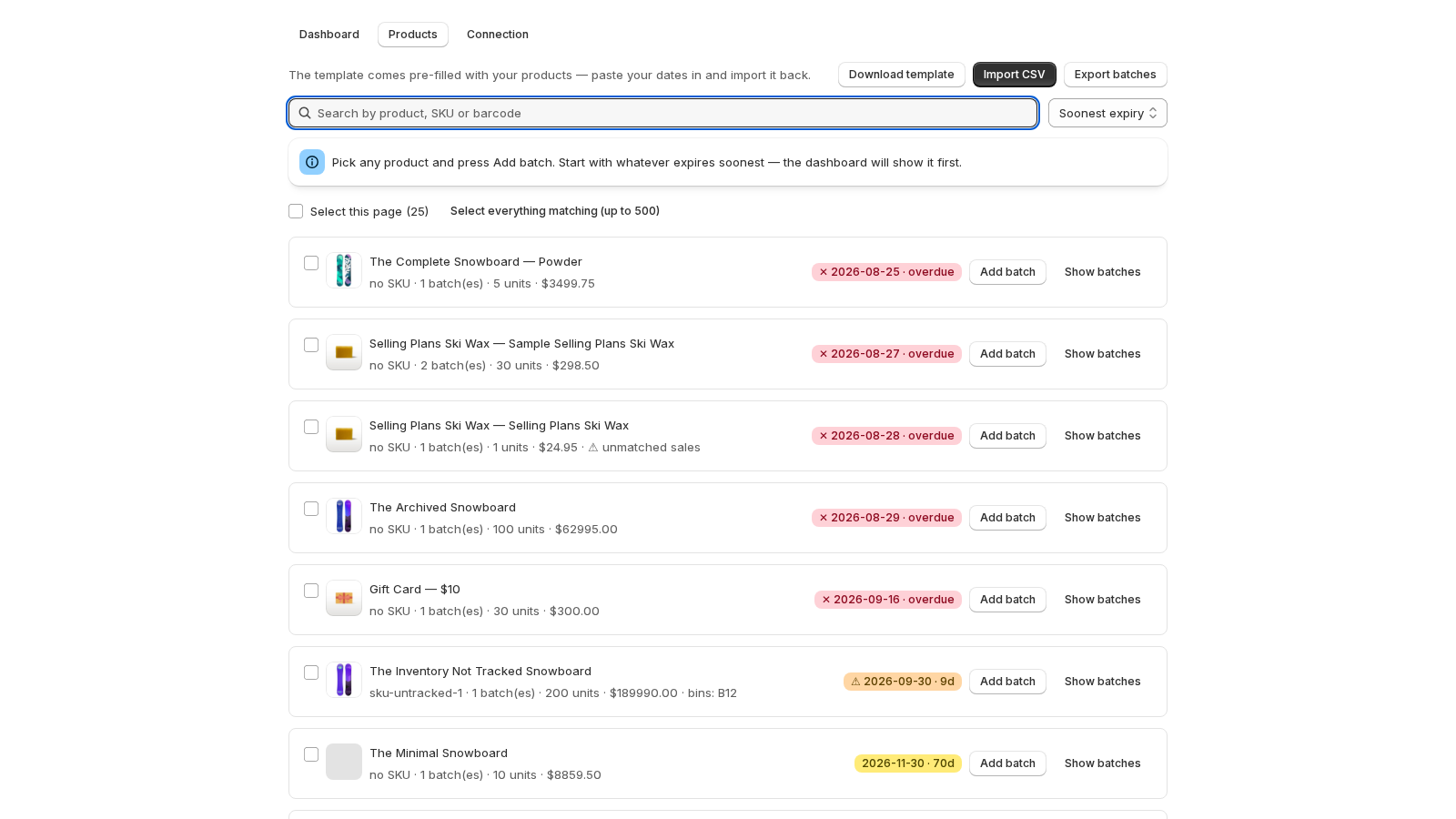
Open Products, find the product (search by product, SKU or barcode) and press Add batch on its row. The same button sits on the product's own page, next to its batches.
The form asks for the date and how many units arrived. The first time, it explains what each field drives: the expiry date drives every alert and the order sales are deducted in; quantity is how many units arrived; lot code, bin and note are optional.
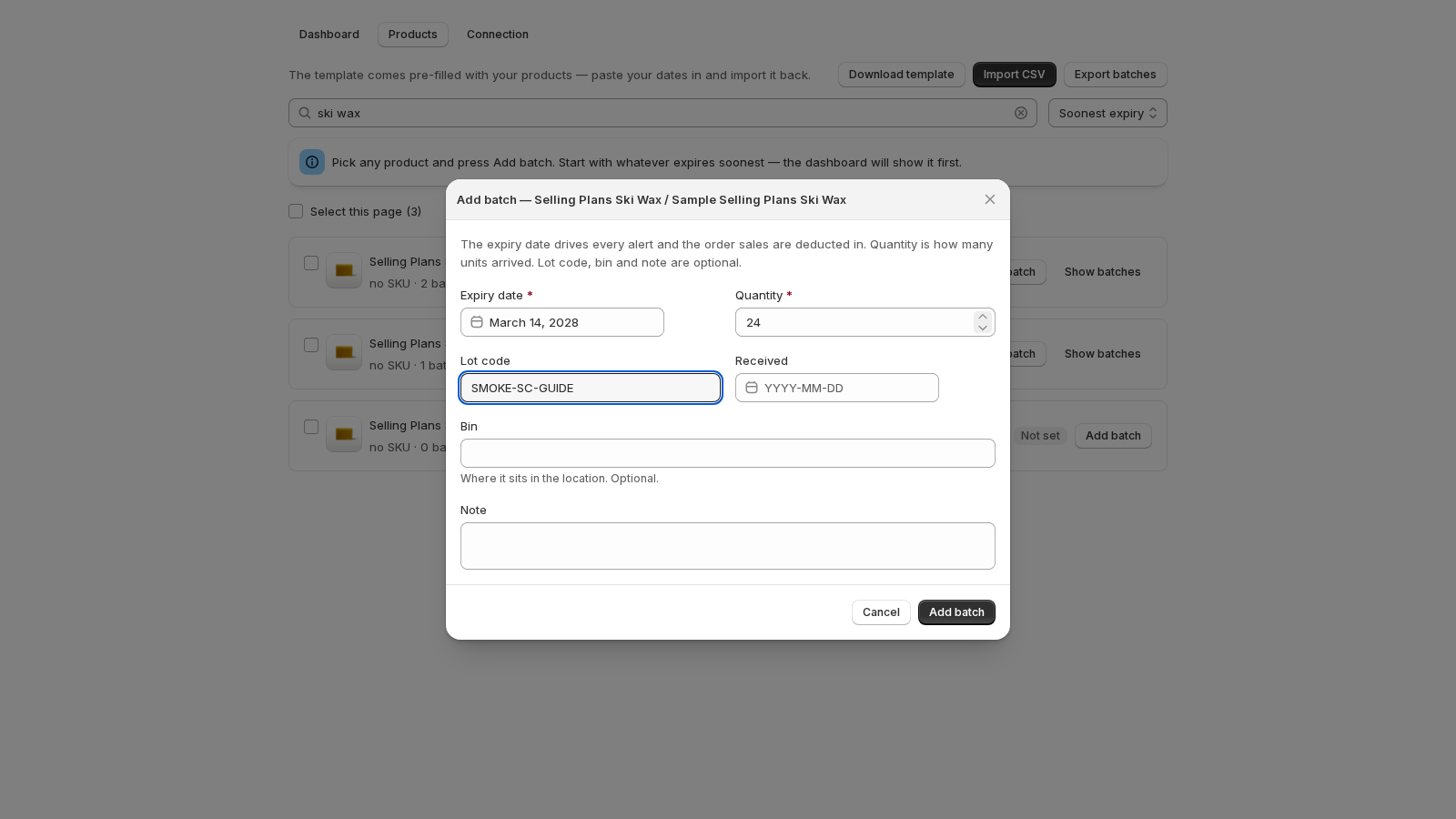
| Field | Required | What it does |
|---|---|---|
| Expiry date | yes | Decides which dashboard card the batch lands on, the order sales deduct in, the markdown tier and when Write off appears. |
| Quantity | yes | Units received. Sales count down from it; the remaining figure is what the dashboard values. |
| Lot code | no | The code on the carton. Shown on every row, in the shipment history and in the digest. |
| Bin | no | Where it sits inside the location (COLD-A-11), for whoever picks. |
| Received | no | The delivery date. Used when you correct a shipment: only batches received on or before the sale are offered. |
| Note | no | Free text for you. |
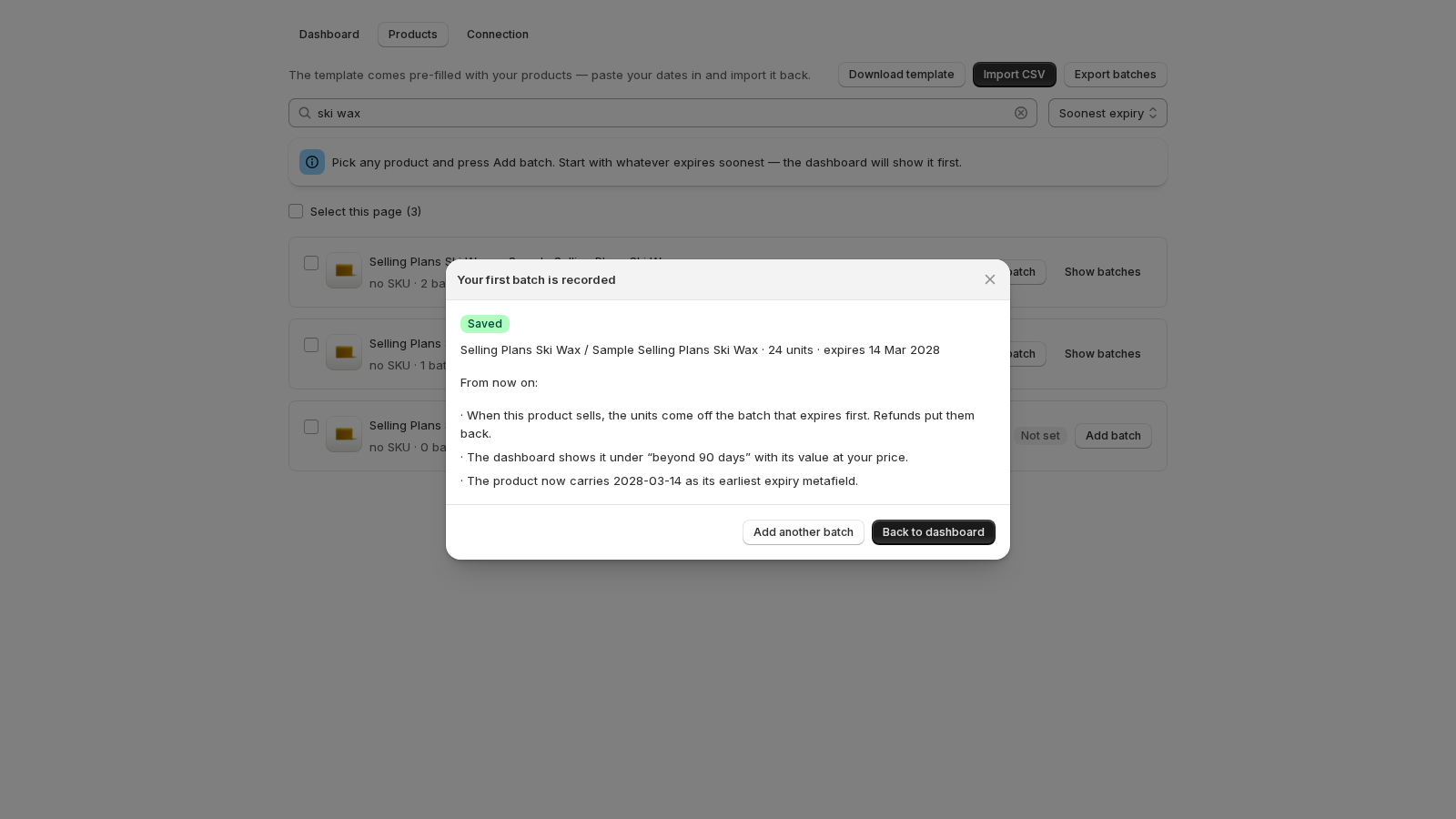
Save. The first time, the app recaps what happens from now on: which card the batch shows under, that sales will come off the batch that expires first, and that the variant now carries its earliest expiry date as a metafield your theme can read.
Dates in the past are allowed. Stock that has already expired shows under Expired on the dashboard — finding it is often why people install the app.
Where your batches show
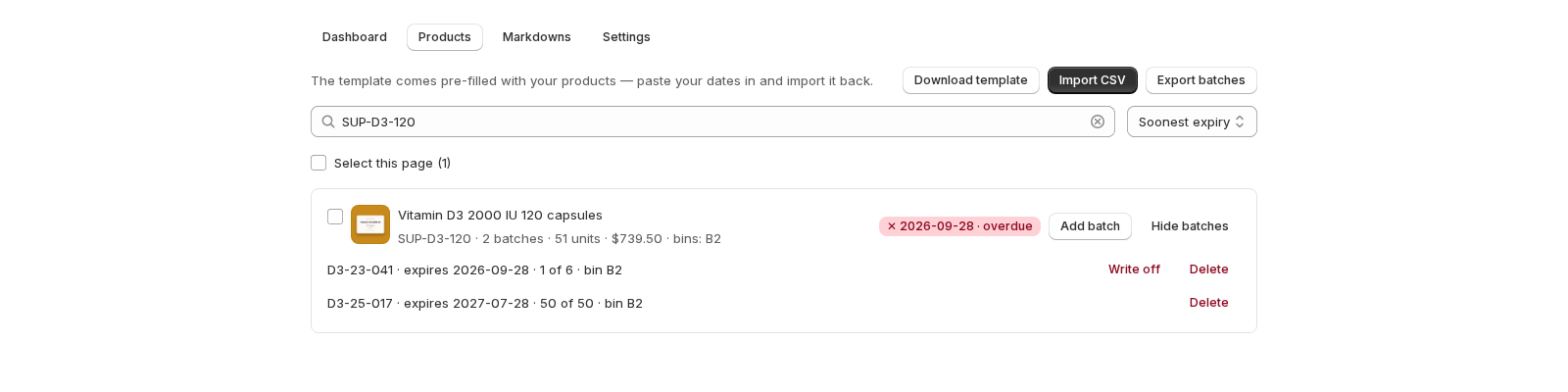
On the product list, every row carries a badge for its soonest date — ⚠ 12 Nov 2026 · 29d, ✕ 3 Oct 2026 · overdue, or Not set — and Show batches opens the rows underneath, one line per batch: A3155 · expires 12 Nov 2026 · 18 of 24, with its bin when it has one. The product's own page lists the same batches with Edit, the shipment history under them, and the line Tracked 42 · Shopify 42 · ✓ In sync that says whether your batches add up to Shopify's count.
Edit a batch
Press Edit on the batch. Change the date and the batch moves to its new card and its new place in the deduction order; nothing moves on Shopify. Change the quantity when a count was wrong. Adding or editing a batch never changes Shopify's inventory — Datima reads that count and compares, it does not write it. The one exception is Write off, which you press on purpose.
Zero, or delete
Two ways to end a batch, and they mean different things:
- Zero… sets the remaining quantity to zero and keeps the history: every shipment that came off the batch still points at it. This is what used up means. A batch that has had sales cannot be deleted; the app offers to zero it instead.
- Delete removes the batch from Datima. Shopify's inventory does not change — the units are still counted as available there. To take expired units out of Shopify, use Write off instead; the dialog says so.
When you have many
One at a time is for the odd delivery. For a whole catalog, import a spreadsheet that already lists your products; for one delivery across many products, use the bulk bar. Both go through the same rules as the form, so a batch is a batch whichever way it came in.
Related guides
- CSV import and export: your whole catalog in one spreadsheet
- Bulk edit: one date for many products
- What happens on a sale: first expired, first out
- Write expired stock off, and Shopify's inventory follows
- Getting started: the five-minute path
Questions? support@datima.ai · Last updated 14 October 2026