
When to import
With hundreds of products, typing one batch at a time is the wrong tool. The import takes a spreadsheet that already lists every variant in your store, so the work is pasting dates into two columns, not building a SKU list. Nothing is written until you have seen exactly what will happen.
Step 1 — download the template
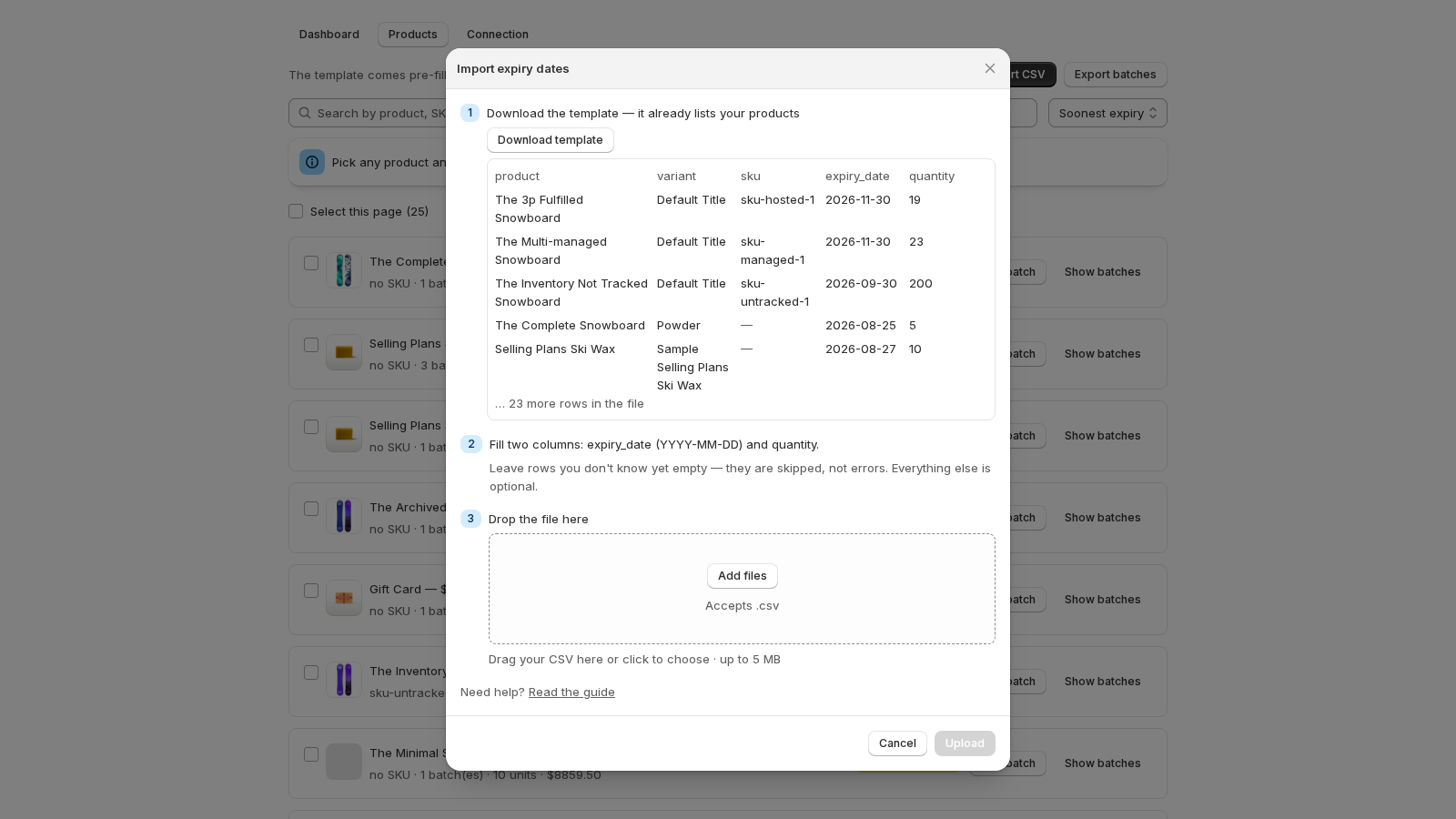
Open Products → Import CSV. The first step downloads the template; it already lists your products, with a preview of your own rows. (Products → Download template gives you the same file any time.)
Step 2 — fill two columns
Fill expiry_date and quantity on the rows you know. Rows you leave blank are skipped, not errors. Dates go in as YYYY-MM-DD.
| Column | Required | Example |
|---|---|---|
sku or variant_id | pre-filled | YOG-500 |
expiry_date | yes | 2027-03-14 |
quantity | yes | 24 |
lot_code | no | A3155 |
location | no | Main Warehouse |
bin | no | COLD-A-11 |
received_date | no | 2026-09-01 |
Two things the columns let you do that the form does not. location names one of your Shopify locations and puts the batch there, which matters for stores with several (how locations work). And a product with several batches is several rows with the same SKU: one per date.
If the same SKU is on more than one variant, the row cannot be matched by SKU alone — use the variant_id column, which is exact. The template fills it in for you.
Step 3 — drop the file and review
Drag the CSV onto the dialog (up to 5 MB). The app checks it first — Checking… nothing is written yet — and shows the review: how many rows are ready, how many empty rows were skipped, how many batches would be created and how many existing ones updated, and the rows it could not read, each with its row number and the reason.
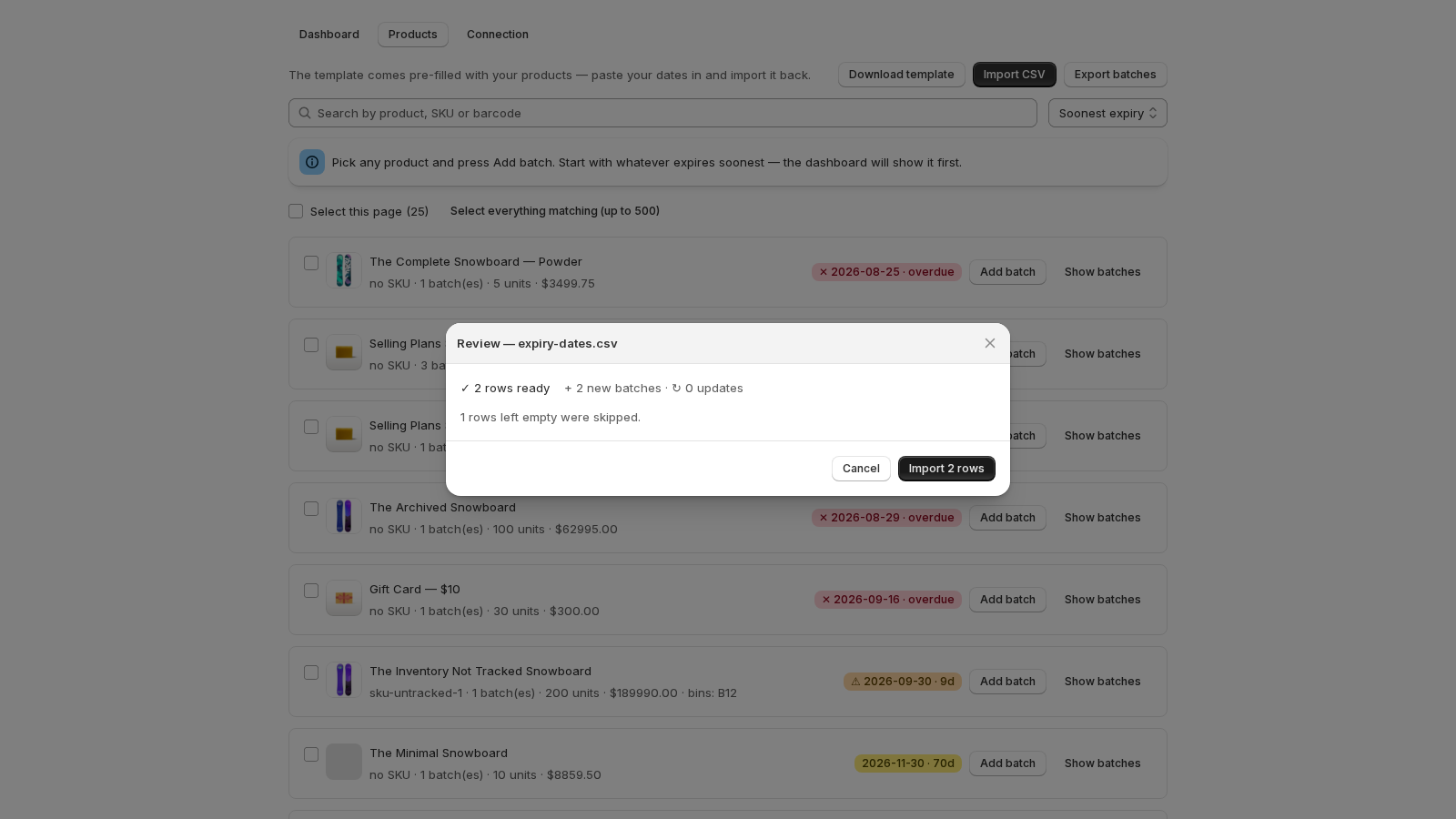
A date already in the past is a warning, not an error: it will import as expired stock, and show under Expired on the dashboard. Press Import N rows when it reads right.
Update or create? A row that names the same variant, expiry date, lot code and location as a batch you already have updates that batch (its quantity, bin, received date). Anything else creates a new one. So re-importing last month's file is safe, and a corrected quantity goes where it belongs.
While it runs
The import runs on the server, in chunks — Importing — 340 of 1,200 rows — and navigating away is safe. Stop import keeps the rows already applied and tells you how many: created and updated so far are kept, the rest untouched.
Fix the rows that failed
When some rows cannot be imported, import the good ones now and press Download the failed rows. The file has the same shape as the template, with only the rows that failed — fix the values and upload that file again. Typical reasons: a date that is not YYYY-MM-DD, a quantity that is not a whole number, a SKU that no longer exists, a location name that does not match one of yours.
Export
Products → Export batches downloads every batch — variant, date, quantity, lot code, bin, location, received date — in the template's shape, so an export imports back. Use it before uninstalling, for a stocktake, or to hand the dates to another system. On the product list, selecting rows and pressing Export selection exports just those products. Exports always work, whatever the plan.
Related guides
- Batches: record an expiry date, a quantity and where it sits
- Bulk edit: one date for many products
- Batches across several locations
- Getting started: the five-minute path
Questions? support@datima.ai · Last updated 14 October 2026