
When the bulk bar is the right tool
A delivery of forty products with one best-before date. A supplier who re-labelled a whole range two weeks later. A category whose dates you want to review this afternoon. All of these are one action on the product list, not forty edits and not a spreadsheet.
Select the products
On Products, narrow the list first — search by product, SKU or barcode, or click a dashboard card to see one segment — then tick the rows. Two shortcuts sit above the list:
- Select this page (25) ticks the rows in front of you.
- Select everything matching (up to 500) takes every product in the current search, across pages. Bulk edits cap at 500 products; for more, split the search or use the import.
The bar tells you what it will act on: 40 selected — everything matching the current filter, or the rows you ticked on this page.
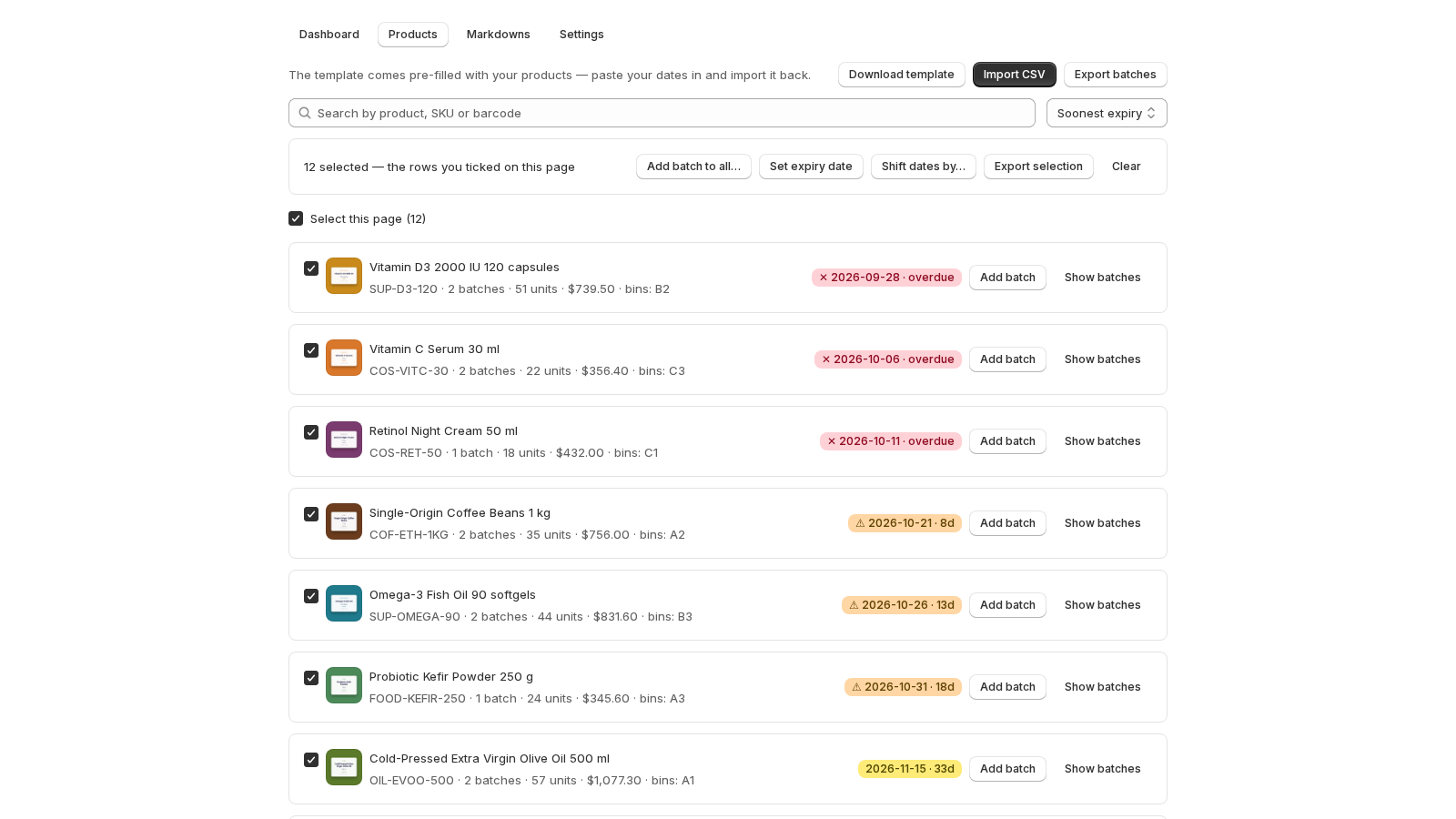
Add a batch to all…
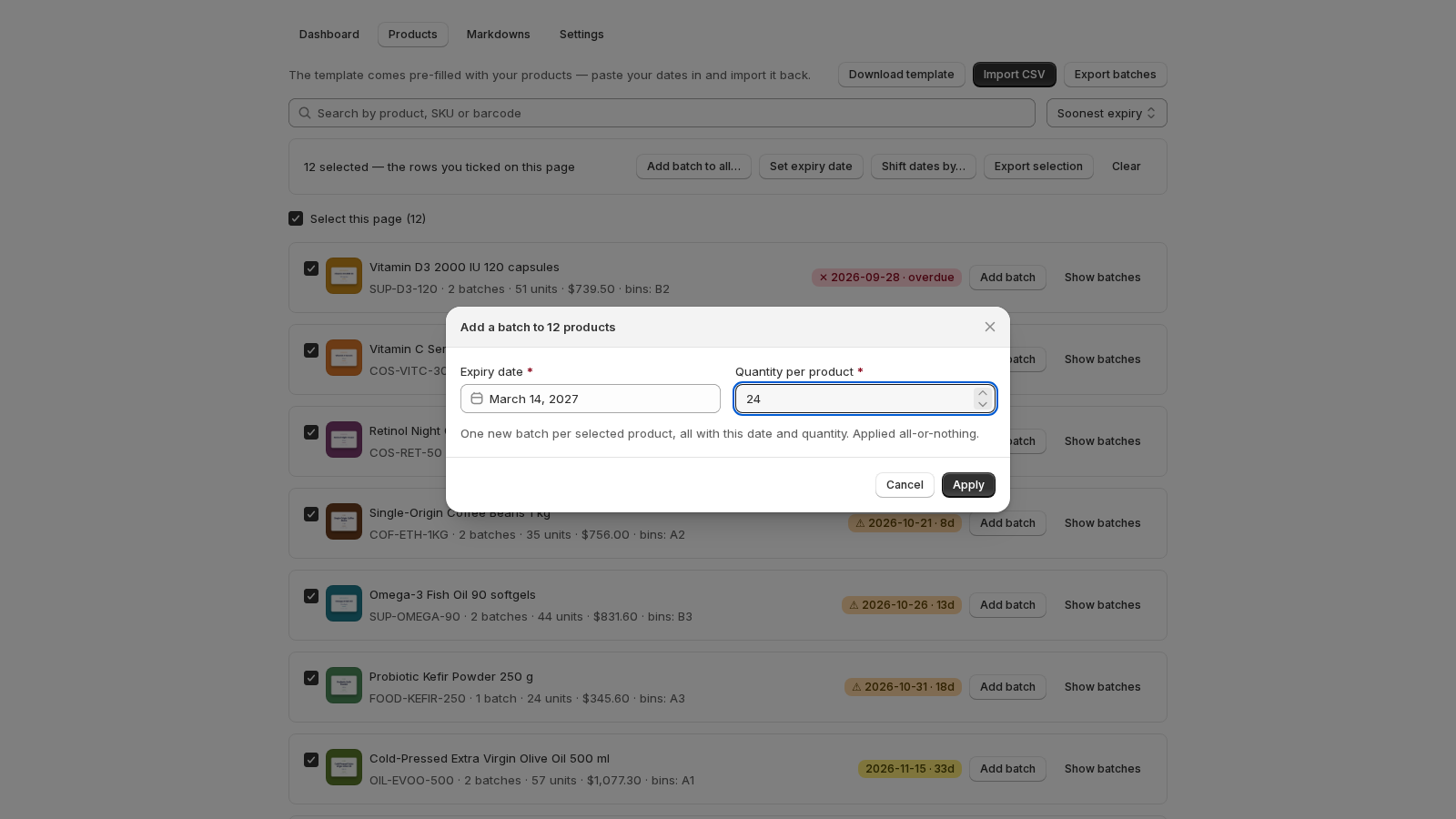
One expiry date and one quantity per product create a new batch on every selected product at once. The lead line says what it will do — Give all 40 selected products the same expiry date and quantity — and the note says how: one new batch per selected product, all with this date and quantity, applied all-or-nothing. The summary afterwards reads 40 batches added. Products that already had batches keep them; this adds one more.
Set expiry date
Moves every batch of the selected products to one new date. Use it when a supplier corrects a label or you mis-typed a date across a range. Products with no batches are left alone and counted: 3 had no batches and were left alone.
Shift dates by…
Moves every batch of the selected products by a number of days, keeping the differences between them. Days to shift takes a negative number to move dates earlier. Useful when a whole shipment turns out to have been dated from production rather than delivery.
Export selection
Downloads the selected products' batches as a CSV in the import template's shape — handy for sending one supplier's lines back to them, or for a stocktake of one category.
All or nothing
Every bulk action is applied all-or-nothing: if anything fails, nothing changes, and the bar says so. A double press never applies twice. The result is one line — how many batches were added or how many products were updated — and the list refreshes with the new badges.
Bulk bar or import?
Same date across many products: the bar. Different dates per product, or lot codes and locations to record: the spreadsheet. Both create ordinary batches; nothing about them is different afterwards.
Related guides
- Batches: record an expiry date, a quantity and where it sits
- CSV import and export: your whole catalog in one spreadsheet
- The dashboard: what expires, when, and what it is worth
- Getting started: the five-minute path
Questions? support@datima.ai · Last updated 14 October 2026