
The five cards
The dashboard answers the question you actually ask: what is expiring, when, and how much is it worth? Five cards along the top: Expired, Within 7 days, Within 30 days, Within 90 days and No expiry date. Each shows how many items and the value of their remaining units.
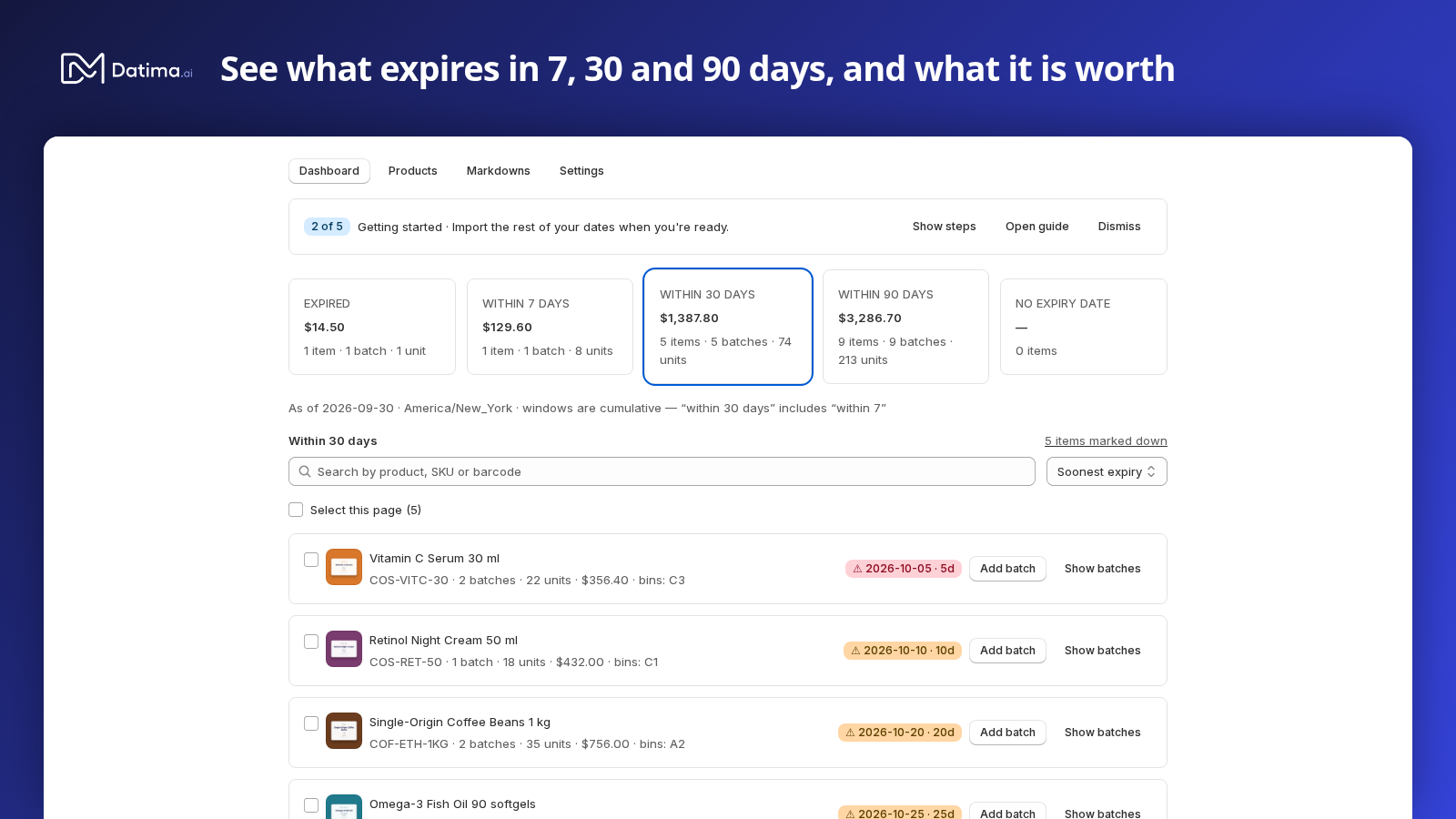
The windows are cumulative. “Within 30 days” includes “within 7”, and “within 90” includes both, because how much expires within a month is the question merchants ask; the caption under the cards says so. Expired is separate: units past their date, still on the shelf and still counted by Shopify.
No expiry date is the products Datima knows from your catalog but has no batch for. It is the to-do list for recording stock, and it empties as you import.
What the value means
Value is the remaining units of each batch at the variant's price. Where the app cannot be confident it says so instead of printing a clean, wrong number: batches whose variant has no price are left out of the total and counted — 3 batches excluded (no price recorded) — never silently absorbed.
Every date comparison runs against your store's local calendar day, not UTC's. The caption reads As of 14 Oct 2026 · America/New_York so you can see which day the numbers describe; a batch that expires today is still within 7 days until tomorrow.
The warnings under the cards
- ⚠ 6 sold units unmatched to any batch — more shipped than your batches covered. Record the missing batch; the FEFO guide explains how to resolve the shipments afterwards.
- ⚠ 2 items out of sync with Shopify — a product whose batches do not add up to Shopify's count. The product's page says why and what to fix.
- 4 items marked down — shown while automatic markdowns are on; click it to see those products.
Cards filter the list
Click a card and the product list under it shows that segment only; click again to clear. The list itself is the same one as the Products tab: search by product, SKU or barcode, sort by Soonest expiry, Latest expiry, Most units, Highest value or Title A–Z, and Show batches to open the batch lines under each row. Each row's badge is its soonest date — ⚠ 12 Nov 2026 · 29d, ✕ 3 Oct 2026 · overdue, Not set — with ⚠ unmatched sales and bins: COLD-A-11 when they apply.
The getting-started checklist
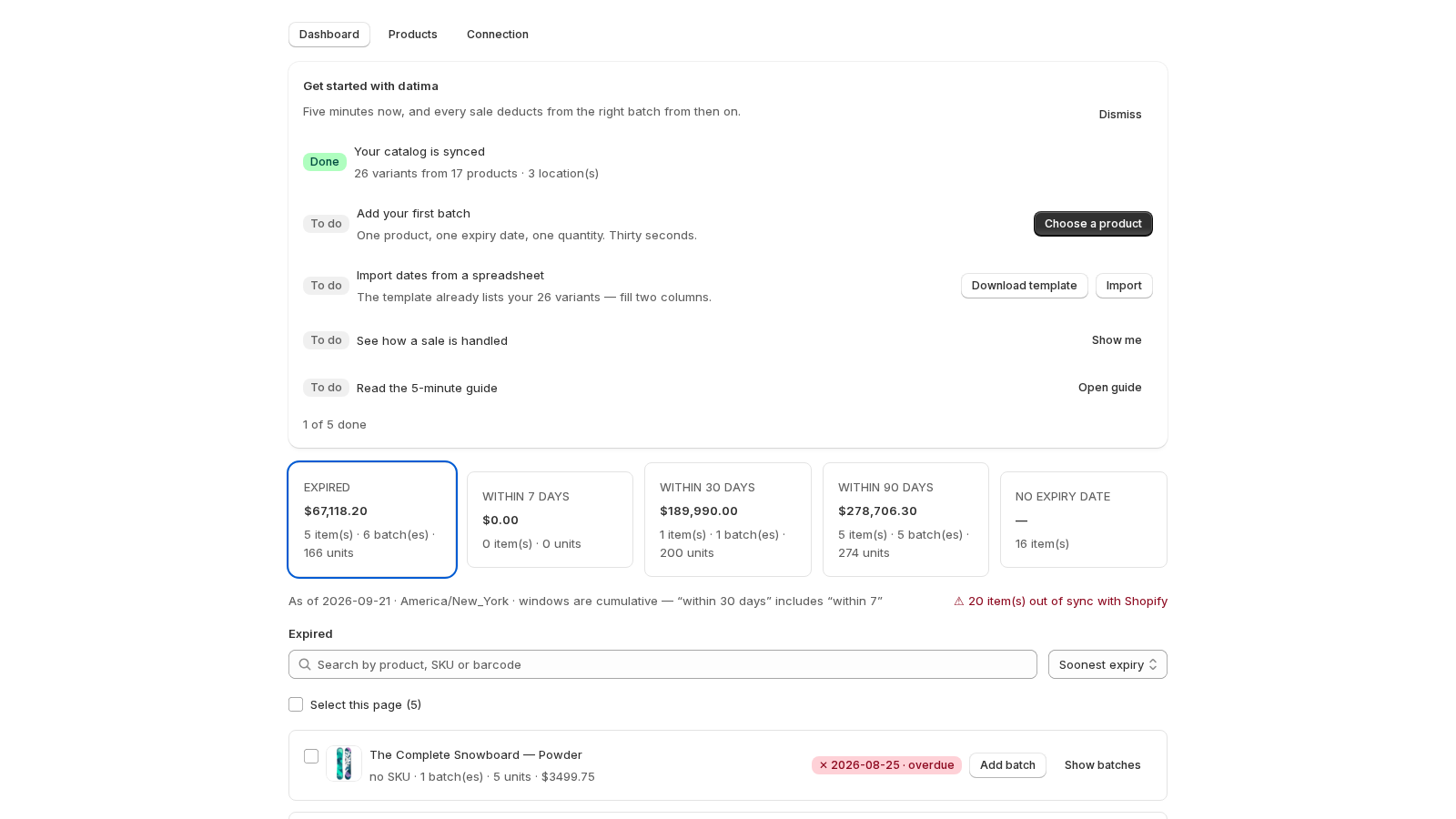
On a fresh install the dashboard opens with a five-step checklist — catalog synced (done for you), first batch, import, how a sale is handled, the guide — and collapses to one line once you are up and running. Hide folds it; Dismiss removes it; Settings → Show the getting-started checklist again brings it back.
The same numbers by email
Once a week the digest mails the Expired, 7-day and 30-day lines with their value and the ten batches to act on first, so you do not have to open the app to know whether this week needs you.
Related guides
- The weekly expiry digest
- What happens on a sale: first expired, first out
- Batches: record an expiry date, a quantity and where it sits
- Getting started: the five-minute path
Questions? support@datima.ai · Last updated 14 October 2026