
Why a write-off, not a delete
When a batch passes its date with units left, two things are wrong at once: Datima shows them under Expired, and Shopify is still counting them as available — sellable, in stock, on the storefront. Deleting the batch fixes only the first. Write off fixes both in one operation: the batch goes to zero in Datima, and the same units leave Shopify's inventory, with a reason and a link in Shopify's inventory history.
Where the button is
On any expired batch with units left — in Products with Show batches open under a row with the ✕ overdue badge, or on the product's page. The button appears only when a batch is past its date and has units; a batch at zero has nothing to write off.

The first time: one permission
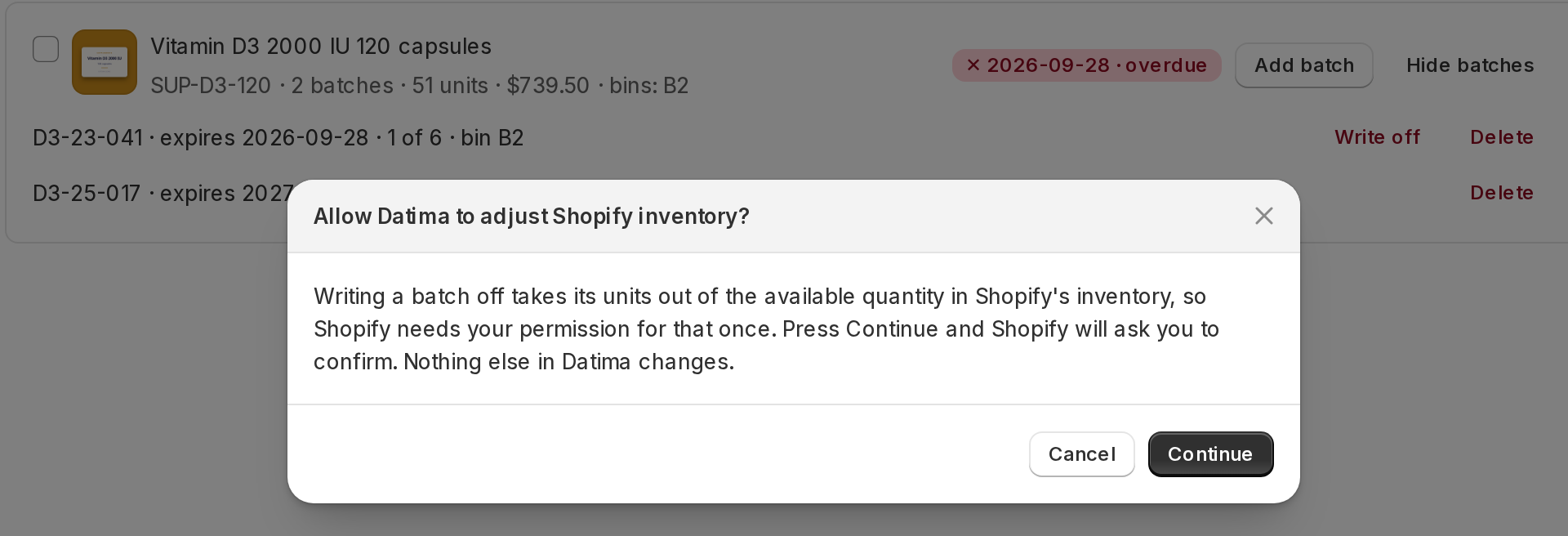
Writing a batch off changes Shopify's inventory count, and Shopify requires your permission for that once. Nothing is asked at install or when you open the app; the first Write off opens a dialog of Datima's own — Allow Datima to adjust Shopify inventory? — that explains what is about to be asked. Press Continue, and Shopify shows its usual permission screen. Decline it and nothing changes; press Write off again whenever you want to allow it.
The write-off itself
One confirmation: Remove 6 units of A3155 from Shopify's inventory at Main warehouse? The batch goes to zero in Datima. If you later set its quantity back above zero, the units go back to Shopify. Press Write off.
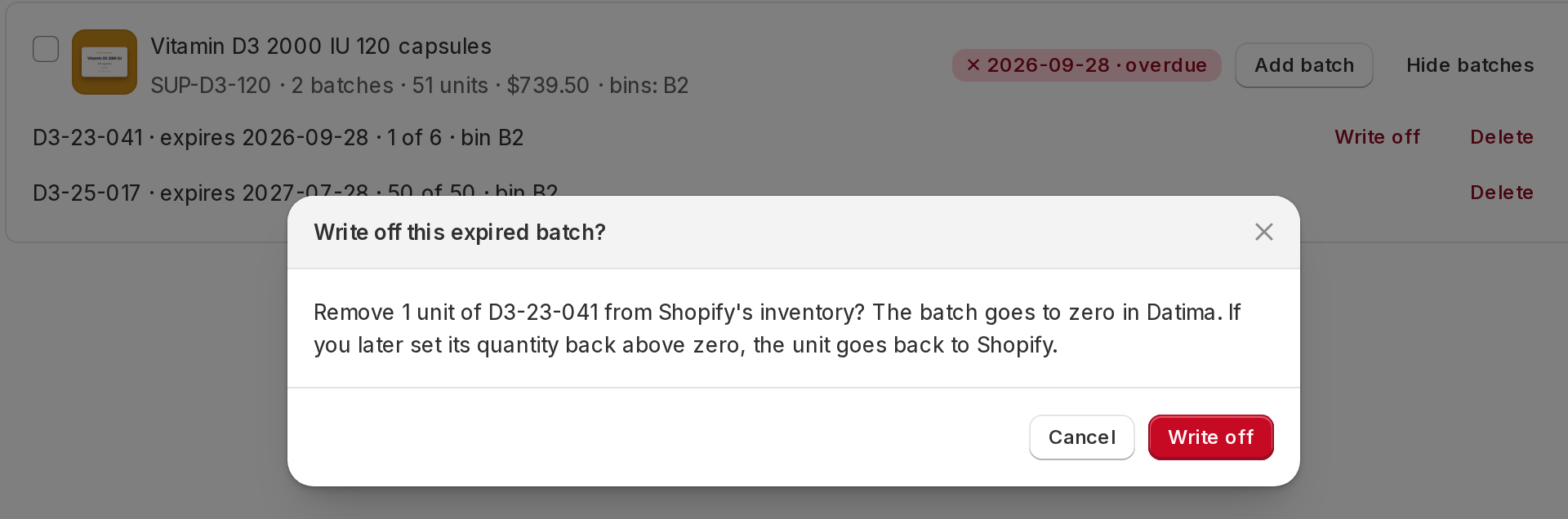
What happens, in order: Datima reads Shopify's current available quantity for the variant at that location, makes one inventory adjustment for the batch's remaining units with the reason shrinkage and a link back to the batch, and only then sets the batch to zero. If Shopify refuses the adjustment, nothing changes on either side and the app tells you why. The row then reads Written off −6 · Main warehouse, and Shopify's inventory history shows the adjustment with its reason.
Which location
The units come out at the batch's location. A batch without a location in a store with one location uses that one. A batch without a location in a store with several asks you — Location to adjust — because Datima will not guess which shelf lost the stock. See locations.
If you were wrong
Edit the batch and set its quantity back above zero: the units go back to Shopify at the same location, capped at what the write-off took. A date change on a written-off batch moves nothing. Only Datima's own write-offs are ever reversed this way; adjustments you made in Shopify yourself are yours.
Delete is different
Delete removes a batch from Datima and leaves Shopify alone — the dialog says so: Shopify's inventory does not change; to take expired units out of Shopify, use Write off instead. Use Delete for a batch entered by mistake, Write off for stock that actually went in the bin.
Never automatic
Datima does not write stock off on its own, on a schedule, or because a date passed. One press per batch, by you. The expired units stay visible on the dashboard until then, which is the point: they are a decision, and the app keeps it in front of you.
Related guides
- Batches: record an expiry date, a quantity and where it sits
- Batches across several locations
- The dashboard: what expires, when, and what it is worth
- Getting started: the five-minute path
Questions? support@datima.ai · Last updated 14 October 2026